 COME
COMECOME Match Access After Update: Compare Two Releases
For match-related access after an update, compare installed and offered versions without confusing dates, sizes or device requirements.
If the app opens but the previous route looks different, start from the category row and identify the intended activity. If it closes instead, record a crash symptom rather than treating it as a navigation problem.
Record the two releases separately
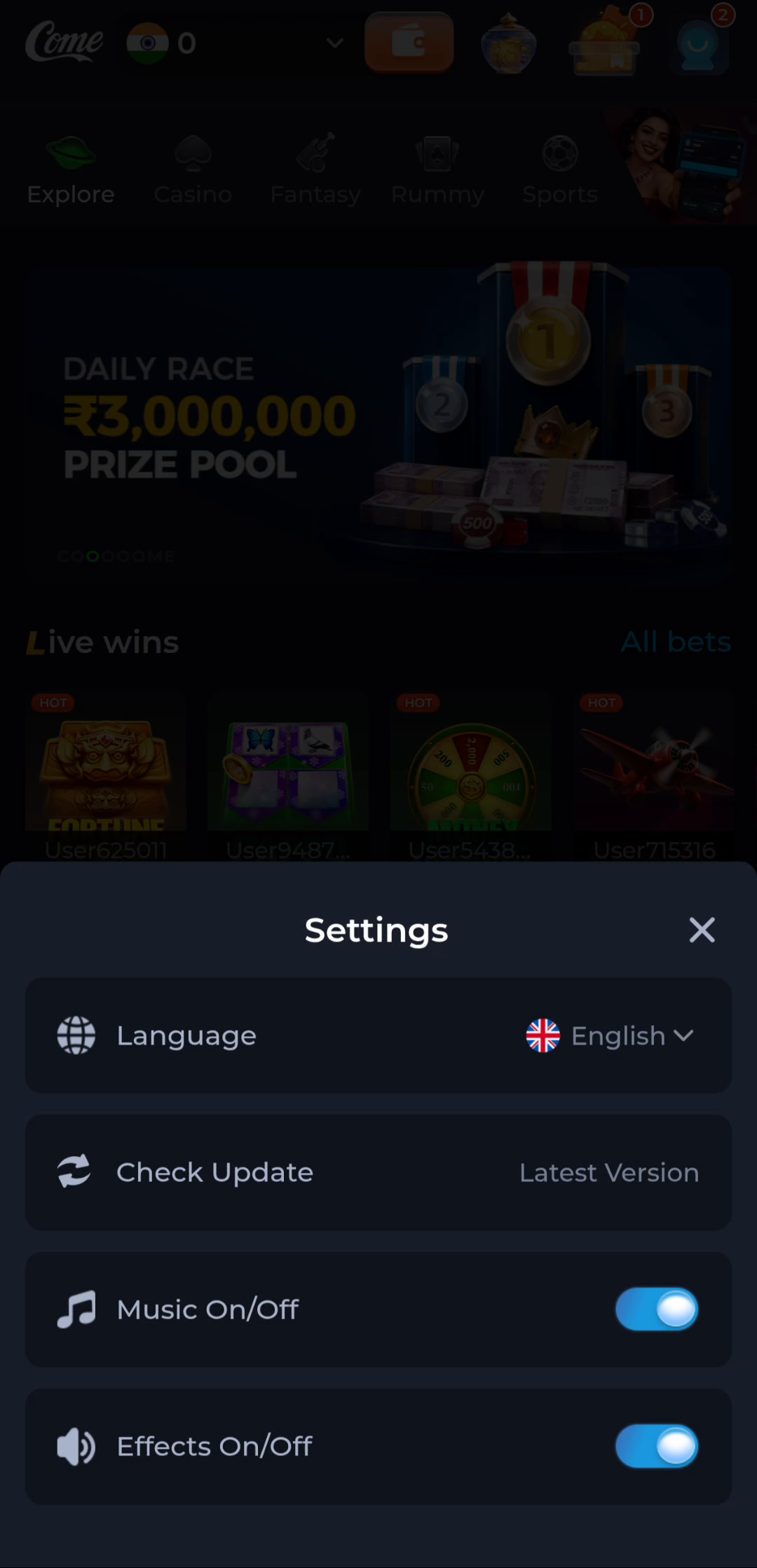
Start with the installed application information on your phone. Record the app name and version where shown, then use COME Settings and Check Update to inspect the offered release. Keep the two values labelled installed and offered. An article title containing new or latest does not decide which file your device currently receives.
The COME listing checked on 30 September 2026 labels the app v1.13 and 3.1MB. These are catalogue fields. They are not a measured binary size, a verified release date or proof that every user receives the same package. Compare the actual information accompanying the offered file before making an update decision.
Distinguish the fields
The Android version identifies the phone's operating system. The app version identifies a software release. The technical package identifier and signing identity describe other aspects of the application. A human-readable app name should not be treated as the technical package ID. Keep these labels when asking about compatibility.
A download-size label describes the package listing, while installed storage includes different components and can grow with use. A guide's review date describes an editorial check. A release date describes when a software release was made available. None should silently substitute for another in a comparison.
Read change information by task
If release notes are available, identify the specific changes relevant to you: a navigation change, compatibility requirement or documented fix. A version number alone does not tell you all of these. If a problem began near an update, record the sequence without assuming the update caused it. Connection or account conditions can also change.
Preserve the working app and account access while checking the offered package. Let a transfer finish before opening it. If Android reports a conflict or signature problem, stop and investigate the source and update relationship. Uninstalling the existing app to force a different package through can remove useful state and is not a default repair.
Verify the outcome after updating
After a successful installation, open the app and inspect the installed version again. Confirm the intended account and the specific task you wanted to improve. Installation success, sign-in and resolution of a prior symptom are separate results. Keep that distinction when reporting whether the update helped.
If the same symptom remains, keep the error and return to its matching troubleshooting branch. Repeatedly installing the same offered release is unlikely to clarify which stage is failing. Use the current product help route for app-specific issues and device support for system installation controls.
Apply this to match-related access after an update
Compare the same category, account and task, then read any current release information. Sports, Fantasy and cricket-score explanations serve different purposes. A moved menu or a changed account view should not be labelled a missing match without checking the screen.
In this situation, complete the relevant check before repeating another stage. Compare installed and offered versions without confusing dates, sizes or device requirements. Keep the result with the exact screen or file so a later step can use it instead of starting the whole process again.
A practical completion check
- Record the installed and offered release fields.
- Read actual requirements and any release notes.
- Verify the installed version and the relevant task after updating.
Keep the result tied to the exact screen and task. A useful stopping point is an understood next step; repeated actions are not a substitute for knowing what the earlier action did.
Questions about this task
Does this guide date mean the APK was released that day?
No. The check date and release date are separate.
Does 3.1MB describe installed storage?
It is the current catalogue’s download-size label, not the total installed footprint.
A related next step
For match-related access after an update, compare the same screen and task before and after an update, using release notes when available.